Gap Past Stop Counter
A stop order only protects you inside the session. If price opens beyond your stop distance from the previous close, the stop cannot fill where you set it. This script marks every session open that gapped past your stop distance and keeps a count over the last sessions, with the dollar size of those gaps for your position.
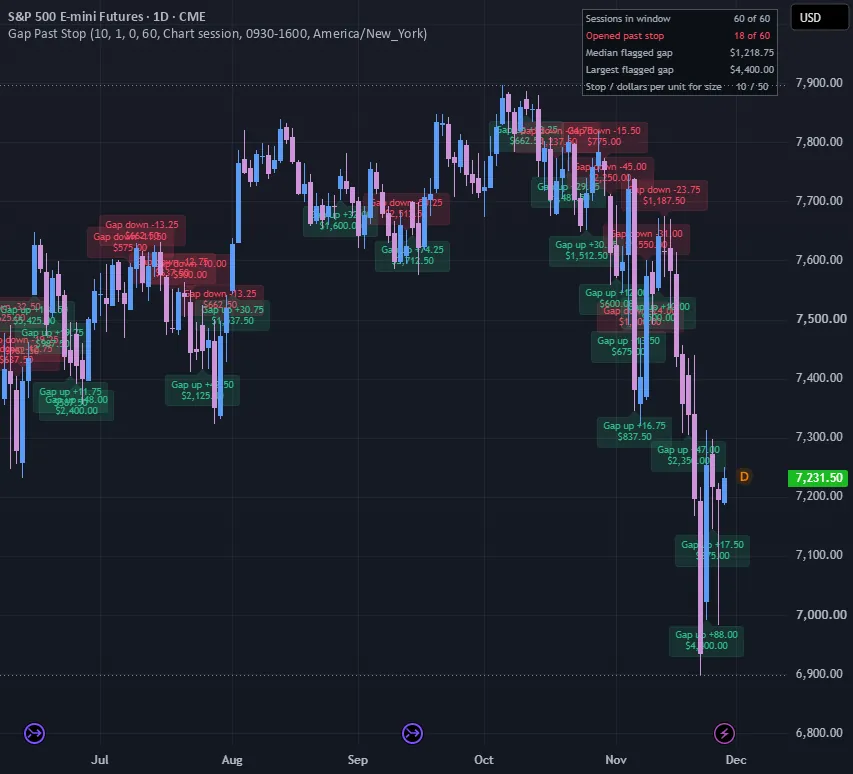
What it shows
- A label on the first bar of a session when the open is at least your stop distance away from the previous session close. It sits below the bar for a gap up and above it for a gap down. It shows the gap in price units and in dollars.
- A table in the top right corner with the number of sessions in the window, how many opened past the stop, the median flagged gap in dollars, the largest flagged gap in dollars, and the stop distance with the dollars per price unit for your size.
- Two alert conditions: Gap up past stop and Gap down past stop.
How it works
The gap is the open of the first bar of a session minus the close of the previous session. A gap is flagged when its absolute size is at least the Stop distance input. The script keeps the signed gap of each session in a list and drops the oldest once the list passes the Sessions in the window input (default 60). On the last bar it counts the flagged gaps in that list using the stop distance currently set, then sorts their dollar values to read the median and the largest. Dollars equal the gap in price units times the dollars per price unit times Contracts or shares. The dollars per price unit come from the symbol point value that TradingView reports, unless you enter an override.
How to use it
- Set Stop distance (price units) to the distance of your own stop, in the price scale of the symbol. The default is 10, which suits an index future. A forex pair needs a small value such as 0.0020, and a stock needs a value in dollars.
- Set Contracts or shares to your size. The default is 1.
- If the symbol reports a point value of 1 and you want another, enter Dollars per price unit override. The default 0 uses the reported value.
- Choose the Session setting. Chart session uses the exchange session of the symbol. Custom hours uses the Custom hours window (default 0930-1600) in the chosen time zone (default America/New_York), and the first bar inside it counts as the open.
- Use an intraday timeframe, or a daily chart with Chart session, so every session has an open bar.
- Read the table. A high count means a stop at that distance would often have been jumped at the open. Change the stop distance and watch the count move.
Why it is different
The count uses your own stop distance as the threshold. Changing the stop distance recounts the whole window at once. The table also turns the flagged gaps into dollars for your size, so you can compare them with any loss limit you must stay inside.
Limits
- The window only covers sessions loaded on the chart. A short history gives fewer than the sessions you ask for, and the table says how many it found.
- The first session loaded has no previous close and is skipped.
- Labels appear for every flagged open in the loaded history, and TradingView keeps the most recent 500. The table covers only the window.
- Markets that trade around the clock, such as crypto, open close to the previous close, so few or no gaps pass a stop of normal size. The table then shows none.
- Custom hours uses the last close that fell inside the custom window as the previous close, so gaps from overnight or weekend moves are included.
- Dollars use the point value reported by the symbol or your override. Check it for symbols where it is not exact. For a forex pair with a point value of 1, enter an override such as 100000 for one standard lot.
- The count is a count of past gaps. It does not predict the next open.
- It draws on the chart only. It places no orders and is not advice about any trade.